

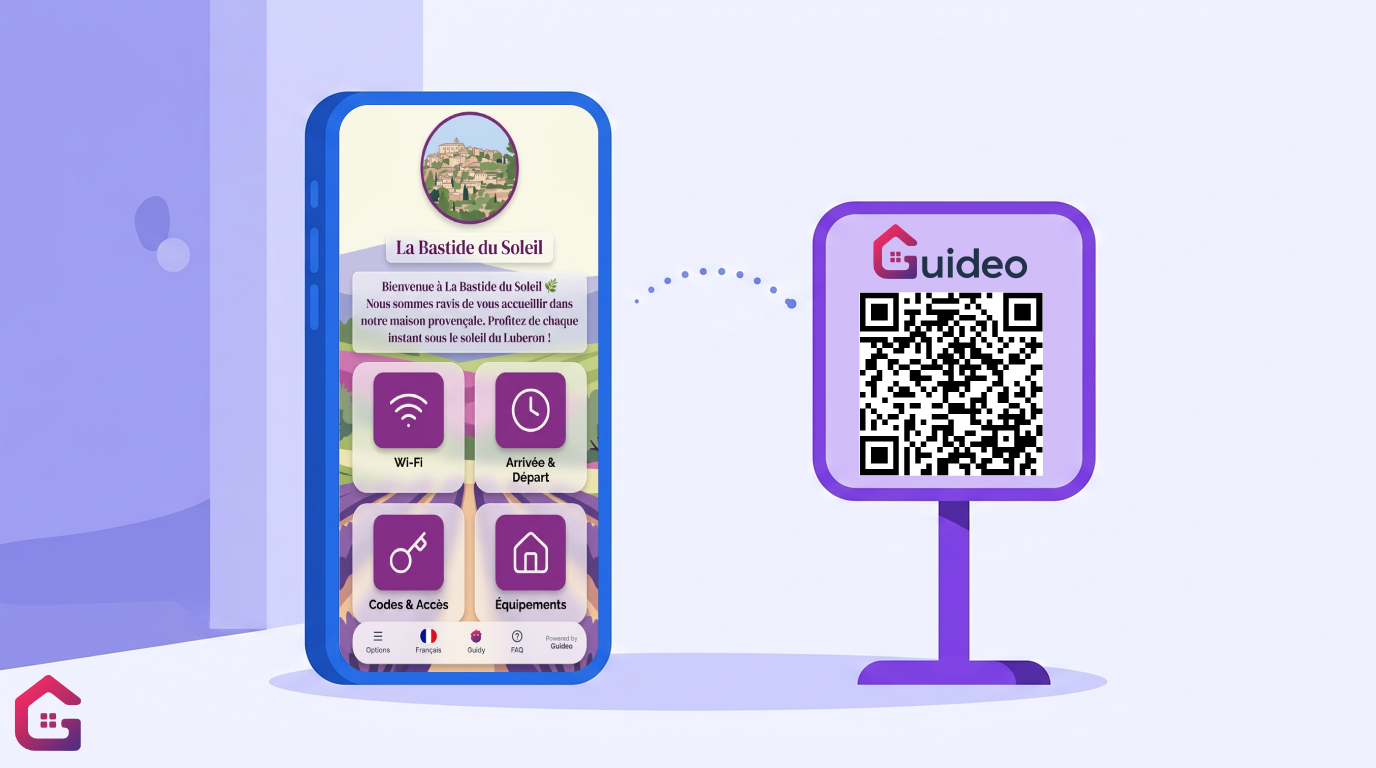
The QR code has become the simplest way to get your welcome booklet into your guests’ hands: a sticker at the entrance, a quick scan with their phone’s camera, and all the information about their stay appears on screen. Here’s how to create your own, where to place it, and the mistakes to avoid.
🔍 How does a welcome booklet QR code work?
A QR code is simply a web address encoded as an image. When a guest scans it, their phone opens the page for your digital welcome booklet — no app to install, no account to create.
The key point to understand is that whilst the QR code points to a fixed address, the content of the page can change. Are you changing your Wi-Fi password, adding a restaurant, or updating your check-out times? The page updates instantly, and your printed QR code remains valid. You’ll never need to reprint anything.
✅ Why it’s better than a binder or a PDF
- Always up to date – make a change online, and all media display the new version.
- Multilingual – the same page is displayed in French, English, German or Spanish depending on the traveller. This isn’t possible with a paper folder.
- Accessible before arrival – include the booklet link in your confirmation message: travellers can prepare for their arrival, and you’ll receive fewer queries.
- Measurable – with a solution like Guideo, you can see which sections are being viewed and improve your welcome booklet accordingly.
🛠️ Create your welcome booklet QR code in 4 steps
1. Create your welcome booklet online
Gather the content for your booklet: access, Wi-Fi, facilities, recommendations, check-out. If you’re starting from scratch, follow our welcome booklet template section by section.
2. Generate the QR code
With Guideo, the QR code is generated automatically for each booklet, in your accommodation’s colours. If you’re using a homemade web page (Google Docs, Notion, etc.), a free QR code generator will do the trick — but make sure it creates a permanent code, as some free services deactivate codes after a few months.
3. Print it on suitable material
A QR code printed on an A4 sheet taped to the wall will work, but it damages your accommodation’s image. Opt for a durable and stylish medium instead: a table-top stand, a wall plaque, or a water-resistant sticker for the kitchen or bathroom. Guideo offers customised, ready-to-install physical displays.
4. Test it
Scan the code using an iPhone and an Android device, under real-world conditions (evening light, one metre away). Check that the page loads quickly and displays properly on mobile devices.
📍 Where should you place the QR code in your property?
The rule: the traveller should come across it just when they have a question.
- The entrance – the main location, visible as soon as they arrive
- The fridge or worktop – where people look for the Wi-Fi code and recycling instructions
- Near the TV and set-top box – for connection issues
- Next to complex appliances – washing machine, induction hob, wood-pellet stove, hot tub
- In your confirmation message – the link (or QR code in the image) as soon as the booking is made
💡 Best practices that make all the difference
- Add some accompanying text – “📲 Scan me: Wi-Fi, accommodation guide and top tips” converts much better than a blank QR code. Remember to translate it into English.
- Minimum size: 3 × 3 cm – any smaller and it becomes difficult to scan. For scanning from over a metre away, allow at least 10 × 10 cm.
- High contrast – dark code on a light background. Avoid printing on glossy surfaces that reflect light.
- One QR code per property – if you manage several properties, each one has its own booklet and code. This allows property management services to manage dozens of booklets from a single account.
❓ Frequently asked questions
Does the QR code change when I update my booklet?
No. The code links to your handbook’s address, which does not change. You can update the content every day without ever having to reprint your materials.
Do my guests need to install an app?
No. Since 2017 on iPhones and 2018 on most Android devices, the camera scans QR codes natively. The booklet opens in the browser.
What if a traveller doesn’t have a connection?
Display the Wi-Fi code in plain text next to the entry QR code: the traveller connects, then scans. Guideo booklets also have an offline mode once they’ve been loaded.
Is a welcome booklet QR code free?
Generating a QR code is free. What matters is the quality of the page behind it: with Guideo, the QR code is included and your booklet is multilingual, personalised and editable as often as you like.
🚀 Your booklet and its QR code in 15 minutes
Create your digital welcome booklet with Guideo: the QR code is generated automatically, ready to print or order on a customised medium.
👉 Try Guideo for free for 30 days — no credit card required.